This guide covers MECCHA CHAMELEON platforms, Steam Workshop, and frequently asked questions. The game is currently a PC-only title on Steam, and that single platform is where you buy it, play it, and access its Steam Workshop maps. We also cover everything you need to know about getting the game, finding custom maps, creating your own maps, and staying safe from fake downloads.
1. Where to Buy MECCHA CHAMELEON
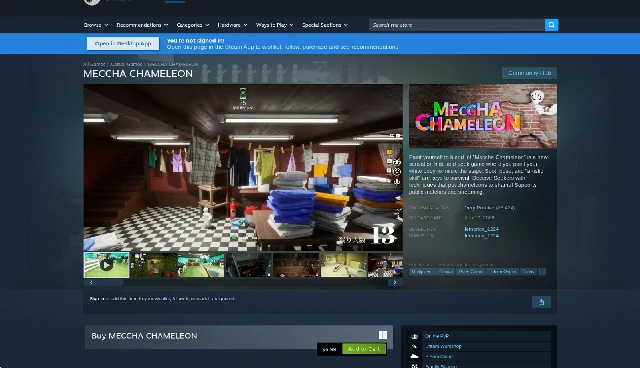
MECCHA CHAMELEON is only available on Steam for PC. There is no official console, mobile, or macOS version at this time.
Official Platform
- Platform: Steam (PC / Windows)
- Developer and Publisher: lemorion_1224
- Release Date: June 9, 2026
- Price: Around $5.99 to $6 USD
- Steam App ID: 4704690
The Steam store page is the only official place to buy the game. The game features Online PvP, Online Co-Op, Steam Workshop, Steam Cloud, and Family Sharing. It also requires agreement to a third-party EULA.
Pricing Context
Kotaku described the game as a "$6 janky indie game" in its coverage. The low price point helped the game spread quickly, reaching over 300,000 concurrent players on Steam shortly after launch.
2. PC System Requirements
The Steam store lists the minimum system requirements. Since the game is only available on Windows, these are the only official requirements.
Minimum Requirements
| Component | Requirement |
|---|---|
| OS | Windows 10 64-bit |
| Processor | Intel Core i5 |
| Graphics | DirectX 11 or 12 compatible graphics card |
| Network | Internet connection required for online multiplayer |
Recommended Specs
The Steam page does not list separate recommended requirements. The minimum listed above should run the game, but performance will depend on your specific hardware and network setup.
Important Notes
- macOS is not supported.
- Linux is not officially supported, though some players may attempt to run it through Proton on Steam Deck.
- The game is not available on any console platform.
3. Supported Platforms and Languages
Language Support
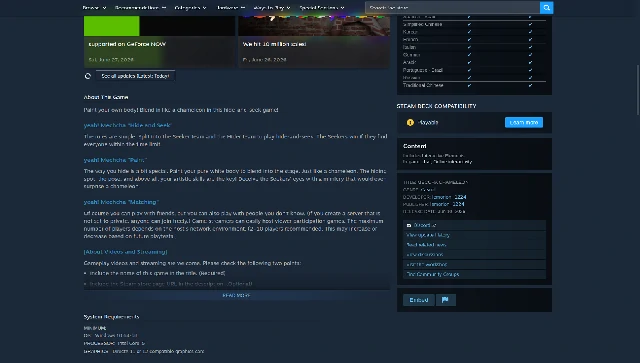
The game supports 12 languages for interface and subtitles. Some languages also have full audio support. Supported languages include:
- English
- Japanese
- Spanish - Spain
- Simplified Chinese
- Korean
- French
- Italian
- German
- Arabic
- Portuguese - Brazil
- Russian
- Traditional Chinese
Platform Availability
| Platform | Status |
|---|---|
| PC / Steam | Available |
| PS5 / PS4 | Not available, not confirmed |
| Xbox Series X | S / Xbox One |
| Nintendo Switch / Switch 2 | Not available, not confirmed |
| macOS | Not available |
| iOS / Android | Not available officially |
Controller Support
The game supports controllers, but keyboard and mouse is the recommended input method. Precision painting, camera control, and pose selection are all much easier with a mouse. Steam Deck users can play, but the experience is not as tight as desktop keyboard and mouse.
4. Multiplayer Basics
MECCHA CHAMELEON is an online multiplayer game. The entire experience is built around hiding and hunting with other players.
Game Modes
- Online PvP: Hunters versus hiders in timed matches.
- Online Co-Op: Play with friends in private or public servers.
Player Count
- The Steam store recommends 2 to 10 players.
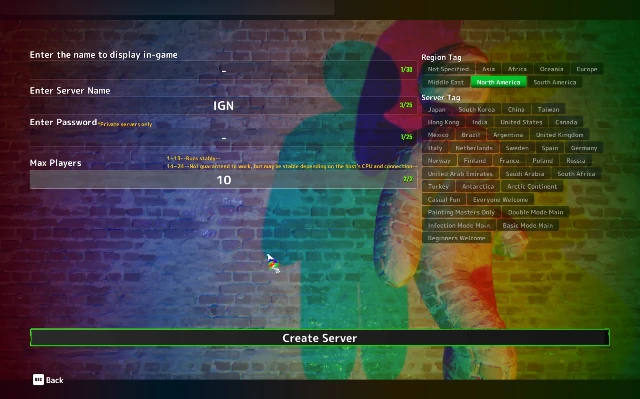
- The in-game server cap is 24 players, though sources note instability above 14 players.
How to Play With Friends
- Launch the game on Steam.
- Create a server from the main menu.
- Set a server name, password, and region.
- Share the server name and password with friends.
- Friends can search for private servers using the same details.
Public Servers
If you do not set a password, anyone can join your server. Public servers are good for quick matchmaking or streamer lobbies, but private servers are better for friend groups.
Crossplay
There is no crossplay because there is no console or mobile version. The game is currently Steam PC only.
5. Steam Workshop Overview
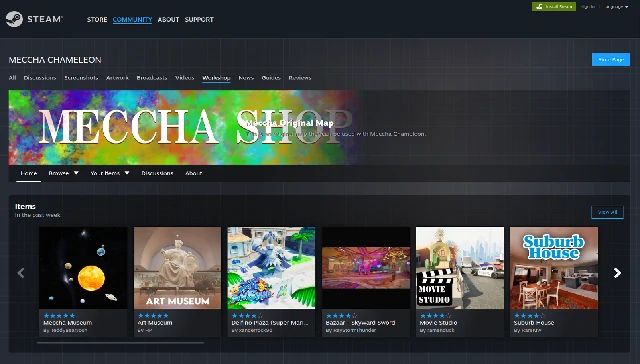
Steam Workshop is one of the game's biggest features. It lets players create, share, and download custom maps directly through Steam.
What Steam Workshop Adds
- Community-made maps beyond the official base maps.
- New environments that keep the game fresh.
- Crossovers with iconic games, TV shows, and real-world locations.
- Easy one-click subscription.
Why It Matters
Custom maps prevent the game from getting stale. Once players memorize the official maps, Workshop maps provide new hiding possibilities and new challenges for hunters.
Official Status
Steam Workshop is listed as an official feature on the game's Steam store page. The game has built-in support for subscribing and loading Workshop content.
6. How to Find and Subscribe to Workshop Maps
Downloading custom maps is much easier than creating them. You can do it entirely from Steam without touching any files manually.
Method 1: Through the Steam Library
- Open your Steam library.
- Find MECCHA CHAMELEON.
- Click the game page.
- Select the Workshop tab below the green Play button.
- Browse maps and click one you like.
- Click the green + Subscribe button on the Workshop page.
- Close and restart the game.
- The map will appear in the map selection menu when you create a server.
Method 2: From the In-Game Menu
- From the main menu, click Maps in the bottom-left corner.
- This opens the Steam Workshop page for the game.
- Browse and click Subscribe on any map.
- Restart the game if it was already open.
- Create a server and select the new map.
Subscription Behavior
- Subscribing is free.
- Steam downloads the map automatically in the background.
- You must restart the game if it was running when you subscribed.
- All subscribed players in a lobby must have the same map downloaded to play together.
Unsubscribing
If you want to remove a map, go to your Steam Workshop subscriptions, find the map, and unsubscribe. Steam will remove the downloaded files.
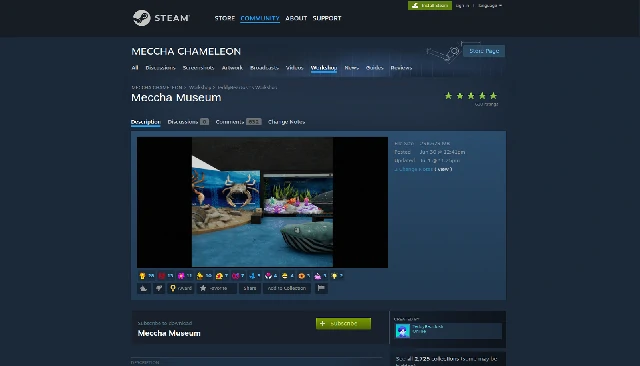
7. Recommended Steam Workshop Maps
Both GameRant and TheGamer have published lists of recommended Workshop maps. Below are the maps that appeared across both sources, along with their creators and descriptions.
Maps Recommended by GameRant
| Map Name | Creator | Description |
|---|---|---|
| Restaurant Building | Zeminah | A medium-sized restaurant with a main area, storage rooms, and a bathroom. Lots of objects to hide among. |
| ART GALLERY | Popunia | A museum-like space with colorful paintings and sculptures. Players can blend into art on the walls. |
| Meeting Room | acid_fox | A modern office with art pieces, plants, and wood patterns. Open space rewards good painting. |
| Swimming pool! | Popunia | A pool map with a viewing deck, empty pool, drawn-on art, doors, and many hiding spots. |
| The Market | Tunep | A rustic village map with market stands and small houses. Cute art style with many hiding options. |
| Viking Dining | RareKiwi | A Viking dining hall with spikes, weapons, food, and drink props. |
Maps Recommended by TheGamer
| Map Name | Creator | Description |
|---|---|---|
| Art Gallery | Popunia | A museum-like space packed with paintings and sculptures. Ideal for hiding beside artwork. |
| Minecraft | Skolas | A blocky recreation of Minecraft with grass, dirt, trees, and stone. Cubes make camouflage easy. |
| Peak Airport | RT | An airport terminal with luggage, seating, signs, and a giant Bing Bong plushie. |
| The Daily Planet | Wes | A Superman newsroom recreation with desks, computers, and TV screens. |
| CS2 Mirage | Seto | A faithful recreation of the Counter-Strike classic. Large map with lots of visual clutter. |
| Simpsons Family House | Nico | A recreation of the Simpsons family home, including the iconic living room and couch. |
| Luigi's Mansion | Gibby4real | A dark mansion with antique furniture, portraits, and eerie lighting. |
| Shopping Mall | Bread | A blocky indoor mall with an instrument store, arcade, grocery store, and fast-food restaurant. |
| Nightclub | Vegal | A two-floor neon venue with dance floors, posters, and glowing decorations. |
| McDonald's | Bars | A fast-food restaurant recreation with booths, counters, and menu boards. |
Why These Maps Work
The best Workshop maps share a few traits:
- They have plenty of visual clutter for hiders to blend into.
- They recreate familiar environments that players enjoy exploring.
- They offer varied colors and props so no single hiding strategy dominates.
- They are compact enough for small groups but detailed enough for larger lobbies.
8. How to Create a Custom Map
Creating a custom map is much more involved than playing one. The process requires Unreal Engine knowledge, plugin setup, packaging, and SteamCMD upload.
Who Should Make a Map
This process is not beginner-friendly. If you have never used Unreal Engine, the learning curve will be steep. TheGamer's guide explicitly notes that this may not be for players without Unreal Engine experience.
Required Tools
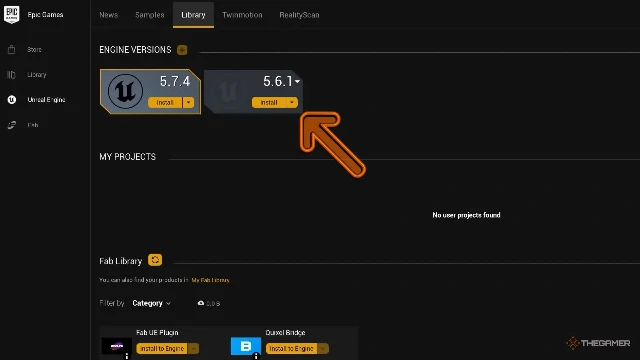
- Unreal Engine 5.6.1: The MECCHA CHAMELEON mod kit was built for this version.
- Official Mod Kit: Downloaded from the developer's provided link.
- SteamCMD: Used to upload the finished map to Steam Workshop.
- A Steam account: Needed to upload Workshop items.
Step-by-Step Overview
Open the Mod Kit and Create a Plugin
- Navigate to Edit > Plugins > Add > Content Only Plugin.
- Give the plugin a unique name.
- Enable Plugin Content in the Content Browser if it is not visible.
Create Your Custom Map
- Inside the plugin folder, create a folder called Maps.
- Create a new level inside the Maps folder.
- Use World Partition and disable Enable Streaming in World Settings.
- Player spawn is at X=0, Y=0, Z=100. Build outward from there.
- Use the CameraBlockWall collision profile on walls and solid surfaces.
Package the Mod
- Open the Legacy Project Launcher from the Platforms button.
- Create two packaging profiles: FullGame and MyMod.
- Configure both profiles with the correct cook, package, and deploy settings.
- Package FullGame first, then MyMod, without changing project settings between builds.
Prepare the Workshop Files
- Copy the .pak, .ucas, and .utoc files from your plugin's packaged output.
- Copy AssetRegistry.bin from the Cooked folder.
- Create a thumbnail image named Preview.png.
- Place all files in the same upload folder.
Set Up SteamCMD
- Download and launch SteamCMD.
- Log in with your Steam account.
- Copy and edit the Sample.vdf file from the mod kit.
- Fill in the upload folder path, preview image path, title, and description.
- Leave the appid unchanged and do not edit publishedfileid for a new upload.
Upload the Mod to Steam Workshop
- Run the workshop_build_item command in SteamCMD.
- Point it to your edited VDF file.
- If the upload succeeds, your map will appear on Steam Workshop.
Important Warnings
- The process is technical and error-prone.
- Do not change project settings between FullGame and MyMod packaging.
- Missing files will cause the upload to fail.
- Always follow the developer's official instructions alongside any third-party guide.
9. How to Play Custom Maps With Friends
Once a map is subscribed, it needs to be selected in-game.
Hosting a Custom Map
- Launch MECCHA CHAMELEON.
- Create a server as usual.
- In the lobby configuration, select the custom map from the map list.
- Start the server.
Joining a Custom Map
- Make sure you are subscribed to the same map as the host.
- Join the host's server using the server name and password.
- If you do not have the map, you will need to subscribe and restart before joining.
Common Issues
- Map not showing up: Restart the game after subscribing.
- Friends cannot join: Make sure everyone has subscribed to the exact same map.
- Wrong version: Workshop maps can be updated by the creator. Make sure everyone is on the latest version.
10. Platform FAQ
Is MECCHA CHAMELEON on PS5 or PS4?
No. There is no confirmed PlayStation version.
Is MECCHA CHAMELEON on Xbox?
No. There is no confirmed Xbox Series X|S or Xbox One version.
Is MECCHA CHAMELEON on Nintendo Switch?
No. There is no confirmed Switch or Switch 2 version.
Is MECCHA CHAMELEON on mobile?
No. There is no official iOS or Android version. Any mobile app claiming to be the game is unofficial or fake.
Is MECCHA CHAMELEON on Mac?
No. The game only supports Windows 10 64-bit.
Can I play MECCHA CHAMELEON on Steam Deck?
The game is not officially supported on Steam Deck, but some players may run it through Proton. Keyboard and mouse is recommended for the best experience.
Does MECCHA CHAMELEON have crossplay?
No. There is no crossplay because the game is only available on Steam for PC.
What is the player count?
The Steam store recommends 2 to 10 players. In-game servers can host up to 24, but sources recommend staying at 14 or fewer for stability.
11. Download Safety
Because MECCHA CHAMELEON became popular quickly, fake versions, clones, and scam downloads have appeared online. Here is how to stay safe.
Buy Only from Steam
The only official purchase channel is the Steam store. The official app ID is 4704690. If the page does not match this, do not buy or download from it.
Avoid Fake Mobile Apps
There are unofficial mobile apps and websites claiming to offer MECCHA CHAMELEON on Android or iOS. These are not made by the developer. Some may be unrelated games using the name, and others may contain malware or scams. The official game has no mobile version.
Avoid Unofficial "Free" Downloads
Some websites offer the game as a browser-based or free downloadable version. These are not official. Do not download executable files from these sites. They may contain viruses, keyloggers, or adware. They also may not actually run the real game.
General Online Safety Tips
- Keep your operating system and antivirus up to date.
- Only run installers from trusted sources.
- Verify that Steam launches the game, not a separate executable.
- Check reviews and community feedback before trusting any third-party site.
12. General FAQ
Is MECCHA CHAMELEON free to play?
No. The game costs around $5.99 to $6 USD on Steam.
Can I play MECCHA CHAMELEON offline?
No. The game is online multiplayer only. There is no offline mode or single-player mode.
How many players can join a server?
Up to 24 players can join a server, but the recommended range is 2 to 10 players. Sources note instability above 14 players.
Can I add friends through the game?
The game uses Steam for multiplayer. You can invite friends by sharing your server name and password, or by playing with Steam friends who join public servers.
How often does the game update?
The developers have been updating the game frequently. Updates have added features like the Cube Character, new poses, clones, Ammo Limit, and third-person camera.
Can I stream the game?
Yes. The developer allows gameplay videos and streaming. The Steam page asks streamers to include the game name in the title and optionally include the Steam store URL in the description.
Does the game have microtransactions?
As of the current version, there is no mention of microtransactions on the Steam store page. The game is a one-time purchase.
Can I use a controller?
Yes, but keyboard and mouse is strongly recommended, especially for painting and camera control.
What happens if I subscribe to a broken map?
You can unsubscribe at any time. If a map crashes your game, unsubscribe and restart the game.
Where to go next