This mechanics guide explains how MECCHA CHAMELEON works. Moving, painting, posing, cloning, taunting, camera control, ammo management, and social systems all feed into the same round, and understanding each one helps you make better decisions.
This guide breaks down every major system in one place. It is meant as a reference for players who understand the basics but want to see how the pieces connect.
1. Controls and Keybinds
The default control scheme for MECCHA CHAMELEON is straightforward, but the game uses a few keys for multiple purposes depending on context. HUD prompts at the bottom of the screen update if you rebind anything, so treat the in-game Settings screen as the final source after patches.
Default Keybind List
| Action | Default Key |
|---|---|
| Move | W, A, S, D |
| Look / aim | Mouse |
| Crouch | Ctrl |
| Stand up / move up while stuck | Space |
| Lower yourself while stuck | Ctrl |
| Release wall-stick | Shift |
| Open paint mode | F |
| Open pose menu | R |
| Apply paint / tag as seeker | Left mouse |
| Sample color with eyedropper | Space (in paint menu) |
| Rotate camera / model while painting | Middle mouse |
| Create clone | Q |
| Delete all clones | X |
| Manual taunt | 1 |
| Toggle nameplates | 2 |
| Toggle see-through drawing view | 3 |
| Free camera | 5 |
| Free camera roam | 4 |
| Chat | T |
| Open settings / rebind | Esc |
| Give Eeyan | G |
| Switch hunter camera (FPS / TPS) | Right mouse |
Important Notes
- There is no dedicated sprint key. Movement speed is fixed, so prep phase planning is more important than raw movement skill.
- The same Left Mouse button both paints as a hider and tags as a hunter.
- The same Space key is used for climbing, crouching, and sampling colors depending on context.
Rebinding
You can rebind keys from the Settings menu. The game updates on-screen prompts after rebinding, so custom layouts are easy to learn.
Controller and Steam Deck Support
As of the current version, keyboard and mouse is the recommended input method. The fast precision needed for painting and camera control makes a mouse much more effective than a controller. Some players run the game on Steam Deck, but the controls are not as tight as a desktop mouse setup.
2. Movement and Positioning
Movement in MECCHA CHAMELEON is built around standard first-person controls, but the hiding system adds a few unique twists.
Basic Movement
- Use W, A, S, D to move.
- Use the mouse to look around.
- There is no sprint. You move at one steady speed throughout the round.
Why No Sprint Matters
Because everyone moves at the same speed, the preparation phase is not about rushing. It is about planning. Smart players pick a route to a hiding spot before opening the paint menu. Standing still in the open with the paint UI open is a common way to waste time and end up half-painted when the round starts.
Crouching
Press Ctrl to crouch. Crouching lets you slip under furniture, hide behind low objects, and tuck into floor-level spots. Some hiding spots are only reachable while crouched.
Wall-Sticking and Vertical Adjustment
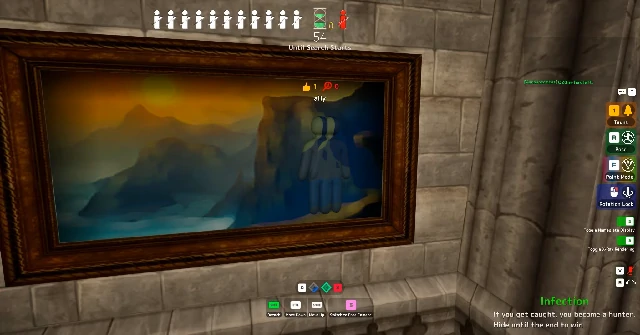
One of the most important hiding mechanics is the ability to stick to surfaces. This lets you pose as wall art, vents, ceiling fixtures, or other vertical objects.
- Space: Raise your position while stuck.
- Ctrl: Lower your position while stuck.
- Shift: Release the stick and drop back down.
This system lets you align yourself flush with a picture frame, shelf, or light fixture. The right vertical position is often the difference between a convincing disguise and an obvious body hanging on the wall.
3. Painting System
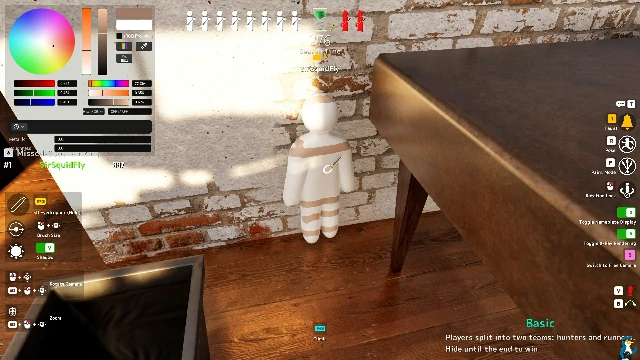
Painting is the core disguise mechanic. A good paint job can make a player nearly invisible, while a bad one makes them stand out.
Opening the Paint Menu
Press F to open the paint mode. The paint menu works like a small art program. It includes:
- A color wheel.
- RGB and hex inputs.
- Preset color swatches.
- Sliders for metallic and roughness.
- Pattern tools.
Applying Paint
Press Left Mouse to apply paint to your character. The middle mouse button rotates your view so you can paint every angle of your body.
Sampling Colors
The eyedropper is the most important tool. Press Space while in the paint menu to sample a color directly from a nearby surface. This is much more accurate than guessing from the color wheel.
A good paint job matches the surface color, lighting, and texture. Matching the base color is not enough. A flat color that looks right up close often reads too bright or too dark from across the room.
Painting Tips
- Sample from the exact surface you are touching.
- Step back and check your disguise from the hunter's likely sightline.
- Paint all sides of your body, not just the side facing the wall.
- Match the roughness and metallic settings to the surrounding material.
- Use shadows and lighting to your advantage.
Right-Click Brush Size
Right-click in paint mode adjusts the brush size, which helps with detailed work or covering large areas quickly.
4. Poses
Poses let you change your body shape to fit specific hiding spots. A pose that reads as an object rather than a crouched player is much harder to spot.
How to Use Poses
Press and hold R to open the pose menu. Move your mouse toward the pose you want. When it is highlighted in blue, release R to lock into that pose. You can also use Left Mouse and Right Mouse to switch between pose wheels.
Pose Count
As of the June 23 update, there are 11 poses available. Poses are shared between the stick figure and the Cube Character, though they look different in cube shape.
Useful Poses
| Pose | Best For | Why It Works |
|---|---|---|
| Curl-Up | Indoor Country, tight spaces | The character faces away, leaving only a smooth back and butt. Limbs do not create visual noise. |
| Backbend | Sugarland, Backrooms | Lets you hide over or on top of objects without your body being too concealed. |
| Slanted | Ladders, roofs, Penguin Hotel | Lets you lie at an angle instead of being stuck to flat surfaces. Good for diagonal objects. |
Pose Selection Logic
The right pose is the one that makes your silhouette read as an object instead of a person. Think about what the spot would look like to a hunter walking past. A curled body on a couch reads as a pillow. A stretched body on a ceiling beam reads as a pipe or vent.
5. Clones
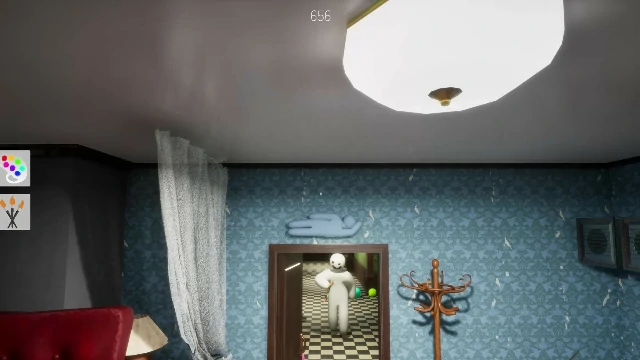
Clones are one of the most flexible and risky tools in the game. They create multiple potential hiding spots, but they are directly tied to your survival.
How to Create Clones
Press Q to create a clone. The clone duplicates your current paint, pose, and position. You can then run to a new spot and create another.
Clone Limits
- You can have up to two active clones at the same time.
- There are green diamonds on the HUD that show clone cooldown timers.
- Each clone has a 30-second cooldown before you can create another.
- The GameRant guide also mentions that you can have up to three total characters including yourself, which matches the two-clone limit.
Deleting Clones
Press X to delete all your current clones instantly. This is useful if you placed them poorly or if a hunter is about to find one. You cannot delete clones while in Free Camera mode.
Clone Mechanics
- Clones inherit your exact paint and pose at the moment of creation.
- Clones ignore gravity. If you jump before creating one, the clone will float in the air.
- You can move into your own clones without triggering the red warning effect that normally appears when objects overlap.
- If a hunter shoots any clone, you are eliminated.
- Clones count toward your missed-spot ranking.
Clone Strategy
- Place clones in spots that are convincing enough to waste hunter time.
- Do not place clones in obvious locations where hunters will check first.
- Floating clones can create impossible-looking disguises.
- In Double Mode, clones increase the number of targets hunters must find, but hunters only need to find one version of each player to eliminate them.
6. Free Camera
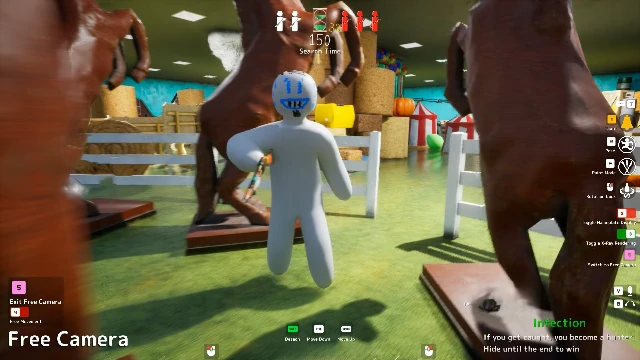
Free Camera lets hiders inspect their own hiding spots and watch the round unfold after they are set.
How to Use Free Camera
Press 5 to enter Free Camera mode. In this mode, you can look around your position to check how your paint job reads from different angles. Press 4 to switch to free-roam mode, which lets you move the camera around the map instead of being locked to your position.
Why Free Camera Matters
A disguise that looks good from your own eyes may look terrible from a hunter's angle. Free Camera lets you find gaps in your paint, exposed limbs, or lighting problems before a hunter sees them.
Limitations
- You cannot delete clones while in Free Camera mode.
- Free Camera is only available to hiders.
- It does not let you move your character; it only moves the camera view.
7. Forced Taunt
Taunting is a sound mechanic that can be used manually or enforced automatically by the host.
Manual Taunt
Press 1 to make your character whistle. This is a manual taunt that hiders can use whenever they want.
Forced Taunt Setting
The host can configure Forced Taunt in the lobby settings. This forces every hider to whistle automatically at set intervals. The frequency can be adjusted, so hosts can make taunts rare, frequent, or disabled entirely.
What Taunts Do
- Taunts give hunters a rough audio direction to investigate.
- They do not reveal exact position, but they narrow the search area.
- Frequent taunts make hiding much harder and favor hunters.
- Infrequent or disabled taunts give hiders more room to stay silent.
Taunt Strategy
- Use manual taunts to bait hunters toward a clone or away from your real position.
- In Forced Taunt mode, plan your hiding spot so that the audio cue does not reveal too much.
- Moving right after a taunt can break the hunter's mental map of your location.
8. Hunter Camera and Tagging
Hunters have a few extra tools beyond basic movement and shooting.
Tagging
Press Left Mouse to tag. If a hunter tags a real hider or clone, the target is eliminated. If they tag a non-player object, nothing happens.
Camera Modes
As of update 2.0.0, hunters can press Right Mouse to switch between first-person and third-person views. Third-person is purely cosmetic and lets hunters see their own character model. It does not provide a competitive advantage in spotting hiders.
Hunter Toggles
- 2: Toggle nameplates on or off.
- 3: Toggle see-through drawing view, which highlights painted hiders through clutter.
Hunter Painting
Hunters can press F in the lobby to paint themselves before the round starts. This is cosmetic and does not affect gameplay, but it adds to the chaos and fun of the match.
9. Ammo Limit
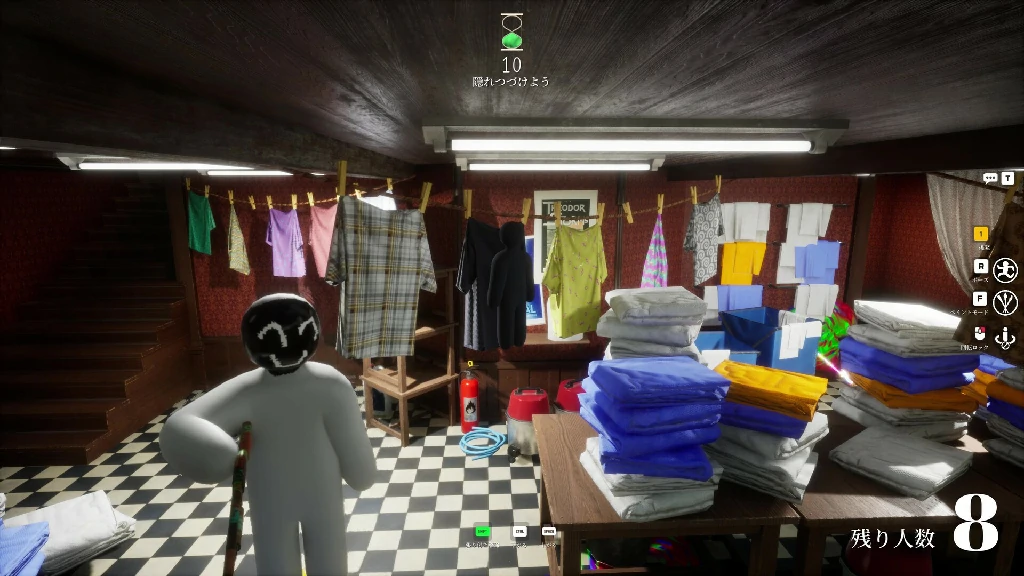
The Ammo Limit setting was added in update 2.3.0. It changes how hunters use their tags.
How It Works
Only the host can enable Ammo Limit. In the lobby configuration menu, the host sets a starting ammo count between 1 and 99. The default is 5.
Ammo Restoration
When a hunter hits a hider, their ammo is restored to the starting amount. This means a hunter who only shoots real targets never runs out. However, misses and shots at clones consume ammo.
Why It Exists
Ammo Limit discourages hunters from spraying shots randomly. It forces careful aiming and makes every shot meaningful. This is especially useful when hunters are much more experienced than hiders.
When to Use It
- Competitive matches where hunter skill is high.
- Small lobbies where random spraying is too powerful.
- Teaching sessions where you want to slow down hunter aggression.
10. Eeyan System
Eeyans are a social reward system that lets players commend each other after a round.
What Eeyans Are
The word "Eeyan" is a Japanese term meaning "That's great." In MECCHA CHAMELEON, Eeyans are likes given during the Answer Check phase at the end of a round.
How to Give an Eeyan
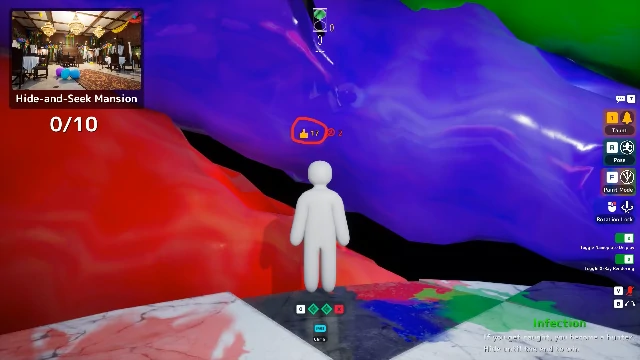
During the Answer Check phase, players can walk around the map and see where everyone hid. Press G while near a hiding spot you liked to give that player an Eeyan. You can only give one Eeyan per match.
How Eeyans Are Displayed
Eeyans appear above player names next to a thumbs-up icon. The total count is permanent and carries across lobbies and groups.
How to Get More Eeyans
- You can only receive one Eeyan per match.
- It must be on your most recent hiding spot.
- Clones are not eligible for Eeyans.
- The best way to earn Eeyans is to create memorable, creative, or technically impressive hiding spots.
Eeyans and Gameplay
Eeyans do not affect the score or outcome of the round. They are a social reward for creativity.
11. Missed Point Ranking
Missed Point Ranking rewards hiders for hiding in places that hunters looked at but did not see.
How It Works
The game tracks when a hunter's camera passes over a hider's position without the hider being tagged. Hiders who stay hidden in plain sight earn more missed points.
Why It Matters
Missed points encourage "hiding in plain sight." A spot that is technically visible but psychologically invisible is often worth more than a deep corner.
Clones and Missed Points
Clones count toward your missed-spot ranking. A well-placed clone can sit in a hunter's peripheral vision and rack up points while the real hider stays safe elsewhere.
Timer
The game refreshes missed point information for hunters every 30 seconds. This gives hiders a window to stay undetected while hunters are trying to process the information.
12. Visual Filters
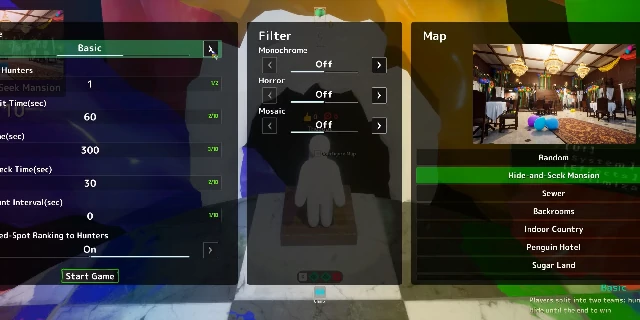
Hosts can apply visual filters that change how the entire match looks for everyone.
Available Filters
| Filter | Effect | Gameplay Impact |
|---|---|---|
| Monochrome | Black and white | Color-based camouflage becomes harder to judge. Shape and silhouette become more important. |
| Horror | Stronger highlights and shadows | Shadows become more dramatic. Dark spots favor hiders, but outlines can pop under direct light. |
| Mosaic | Pixelated view | Details blur together. Long-range spotting becomes harder, but blocky anomalies can stand out up close. |
Mixing Filters
Hosts can combine multiple filters. For example, Monochrome plus Horror removes color and exaggerates shadows. Mosaic plus Horror creates a distorted, high-contrast look.
When Filters Change the Game
- Monochrome rewards shape-breaking camouflage.
- Horror helps shadow hiders but can expose outlines.
- Mosaic favors cluttered spots but hurts clean color-block hiding.
For serious matches, most hosts leave filters off. For fun or themed sessions, filters add variety.
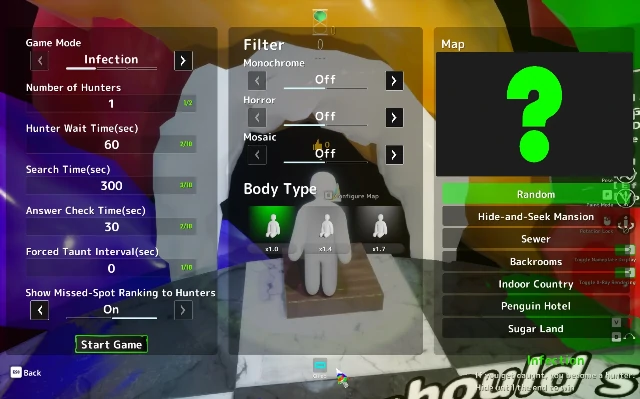
13. Character Size and Cube Character
Update 1.9.0 added new options for character size and shape.
Stick Figure Sizes
The classic stick figure now has three thickness options:
- x1.0: The default size.
- x1.4: A thicker stick figure.
- x1.7: The thickest stick figure option.
Cube Character
The Cube Character is a new shape option added in update 1.9.0. Unlike the stick figure, the Cube Character currently only has one size option: 1.0.
How to Select
When the host starts the round and the countdown begins, a box appears with stick figure size options at the top and the Cube Character option at the bottom. Click your desired character to lock it in for that map. You cannot change it after the round starts.
Gameplay Impact
The Cube Character can blend into certain spots better than a stick figure because of its blocky shape. Poses work the same for both character types, but they look different in cube form. This gives hunters more shapes and sizes to watch for, making some spots harder or easier depending on the shape.
Update 1.9.0 Other Changes
The same update also made several other changes:
- Map confirmation before starting the game.
- Hiding spots are less likely to desynchronize.
- Poses no longer stop midway.
- Shotgun delay increased to 2 seconds.
14. How the Systems Connect
MECCHA CHAMELEON is not about mastering one mechanic. It is about combining them.
The Hide Loop
- Pick a spot before the timer runs out.
- Paint yourself to match the surface, lighting, and texture.
- Choose a pose that makes your silhouette read as an object.
- Use Free Camera to check your disguise from the hunter's angle.
- Place clones if you want extra hiding spots or distractions.
- Survive until the timer runs out, using taunts and movement as needed.
The Hunt Loop
- Listen for taunts and movement.
- Use see-through view to spot painted players through clutter.
- Manage ammo carefully if Ammo Limit is on.
- Switch camera modes for comfort if you want to see your own skin.
- Tag suspected hiders with Left Mouse.
Social Loop
- After the round, Answer Check shows everyone's spots.
- Give Eeyans to the spots you liked.
- Missed Point Ranking rewards creative plain-sight hiding.
15. FAQ
Can I rebind keys?
Yes. Open the Settings menu and rebind keys one at a time. HUD prompts update automatically.
Is there a sprint button?
No. Movement speed is fixed. Plan your prep phase route instead of trying to sprint.
How do I paint myself?
Press F to open the paint menu. Use Left Mouse to apply paint, Space to sample colors, and Middle Mouse to rotate your view.
How many poses are there?
There are 11 poses as of the June 23 update.
How many clones can I have?
You can have up to two active clones at a time, for a total of three characters including yourself. Each clone has a 30-second cooldown.
What happens if my clone is shot?
If any of your active clones are shot, you are eliminated immediately.
How do I delete clones?
Press X to delete all clones instantly. You cannot delete them while in Free Camera mode.
Can I move through my own clones?
Yes. You can move into your own clones without triggering the red overlap warning.
What is Free Camera?
Free Camera lets hiders inspect their hiding spot. Press 5 to enter it, and 4 to roam freely.
What does Forced Taunt do?
Forced Taunt makes hiders whistle automatically at set intervals. The host controls the frequency.
What is Ammo Limit?
Ammo Limit restricts how many shots hunters can fire. It is restored on hit, so careful aim is rewarded.
What are Eeyans?
Eeyans are social likes given during the Answer Check phase by pressing G. They are permanent and carry across lobbies.
What is Missed Point Ranking?
Missed Point Ranking rewards hiders who stay hidden in places hunters looked at but did not see.
What is the Cube Character?
The Cube Character is a blocky alternative to the stick figure, added in update 1.9.0. It only has one size option.
Do filters affect gameplay?
Yes. Filters change how the game looks, which can make certain hiding strategies stronger or weaker.
Where to go next